Do you own a car? If so, you know it’s important to maintain it regularly. This helps reduce breakdowns and other mechanical problems.
For your WordPress site, the logic is the same. If you want it to remain up and running, without outages or errors, maintenance and monitoring operations are essential.
To handle them, the WordPress plugin WP Umbrella can make your life easier while saving you a lot of time.
Not familiar with this site management tool yet? This article will introduce it to you while showing you how to use it.
In the end, you’ll know our concrete opinion as users, based on our experience with the tool. We’ve been using it for several years and are starting to know it quite well.
What is WP Umbrella?
A French solution to manage your WordPress sites “effortlessly”

WP Umbrella is a WordPress site management tool from a single dashboard.
It allows you to carry out daily maintenance tasks “effortlessly”: automatic backups, one-click updates, WordPress monitoring, and automated report creation.
It is a made-in-France solution created in July 2021. At the time this article was published, it claimed to be used by more than 10,000 companies with an excellent customer satisfaction rate (96%).
Who is WP Umbrella intended for?
As stated several times on its official website, WP Umbrella targets two types of users:
- agencies;
- freelancers.
If you’re used to creating all types of WordPress sites (showcase sites, online stores with WooCommerce, blogs, members’ areas, etc.) and managing them for yourself and/or your clients, WP Umbrella can help you.
Thanks to this solution, you no longer need to carry out each maintenance task (backup, update, etc.) manually and site by site.
All your sites are grouped together in the same interface, which saves you from having to log in to each one to perform the same time-consuming operations every time.
Why use WP Umbrella?
The two co-founders of WP Umbrella, Thomas Deneulin (CTO) and Aurelio Volle (CEO), created their tool with one idea in mind: to simplify their users’ lives “in their WordPress maintenance activities” by automating their workflow.
In practice, you benefit from several advantages:
- time savings and increased productivity, with, for example, the ability to carry out different actions (e.g., plugin updates) in bulk, across several sites at the same time, from the same dashboard;
- ease of use, thanks to a centralized dashboard that is very intuitive with a flawless user interface (UI). WP Umbrella is both easy to install and easy to use;
- enhanced security: as soon as a problem is detected on your site (outage, error, failed automatic update, etc.), you are alerted immediately. You also gain greater “peace of mind”, as WP Umbrella puts it;
- the assurance of using a tool that keeps evolving. The tool is updated frequently, at least once a month, with new features being added over time;
- show transparency toward your clients, with the ability to automatically generate reports to demonstrate the operations carried out and the value of your work;
- benefit from responsive support that replies in French;
- compliance with GDPR, to protect your data and that of your users.
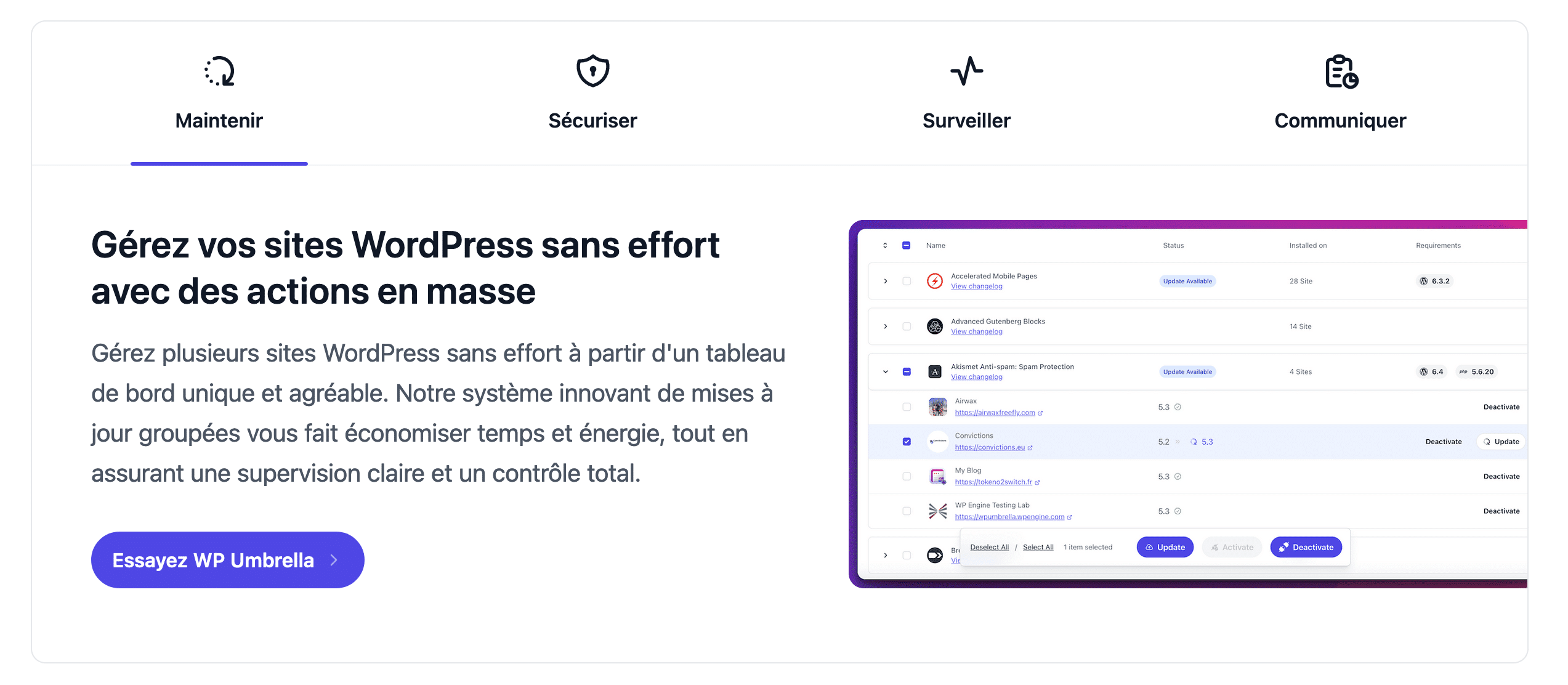
Would you like to activate WP Umbrella on your sites? Discover our instructions in the next section.
The steps to activate WP Umbrella on your WordPress sites
Step 1: Install the WP Umbrella plugin on your WordPress site
The first step is to install the WP Umbrella plugin on your WordPress site.
To do this, go to the Plugins > Add New Plugin menu. Type “WP Umbrella” in the search bar. Install and then activate the plugin:
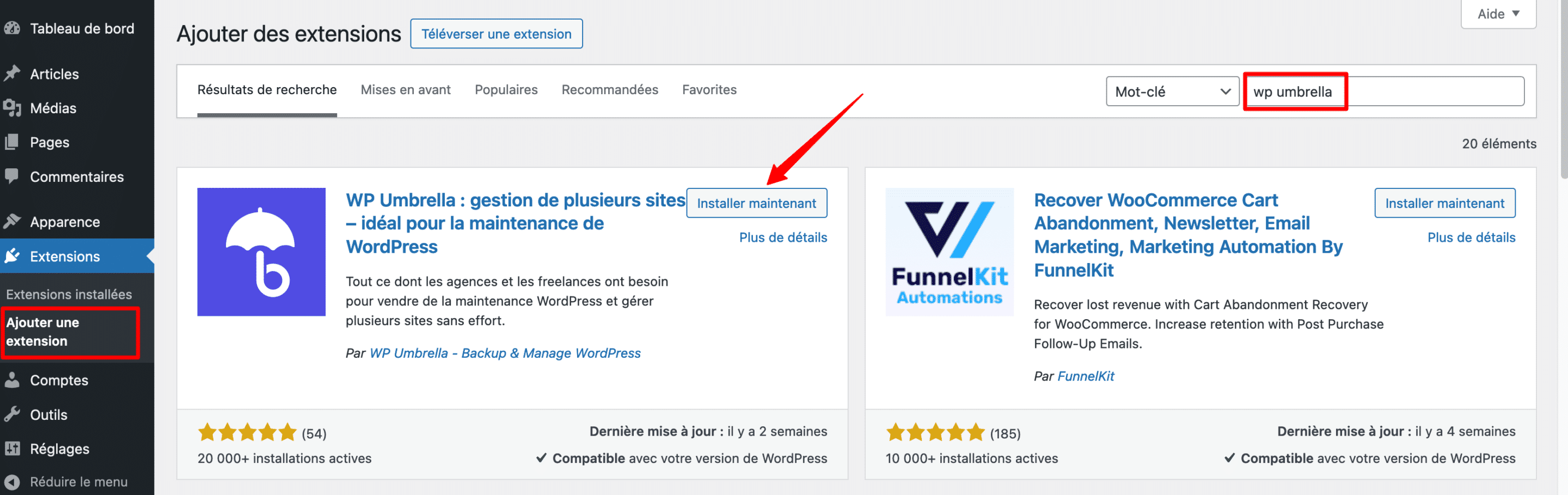
Right after that, go to the Plugins > WP Umbrella menu. You have two options:
- creating an account to obtain an API key;
- adding your WP Umbrella API key, if you already have an account.
We’ll assume that you don’t have an account yet, which brings us to step 2, just below.
Good to know: Technically, the plugin lets you connect your WordPress site to WP Umbrella’s SaaS (Software as a Service) platform. Thanks to this, you won’t have to log in individually to each of your WordPress sites, which will all be in the same place on your WP Umbrella dashboard, accessible directly online on this page.
Step 2: Create an account to connect your API key
Creating an account requires entering the following information in a short registration form:
- your first name;
- your last name;
- an email address;
- a password.
Check the box relating to the service’s terms of use, then finish by clicking the “Register” button:

WP Umbrella will automatically connect your site to its service and invite you to go to its dashboard. If you do, you should land on an interface that looks like this:
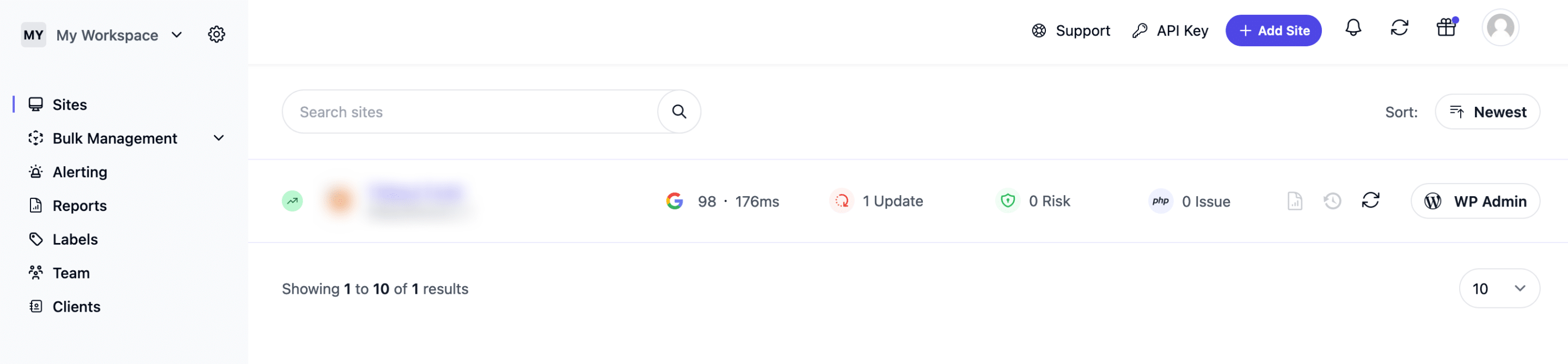
Step 3: Add all your WordPress sites to the maintenance tool
You now know how to proceed to link your first WordPress site to WP Umbrella. If you have multiple sites under maintenance, repeat the process on each of them to add them to your dashboard.
The only small difference in the process to follow: you no longer need to create an account each time.
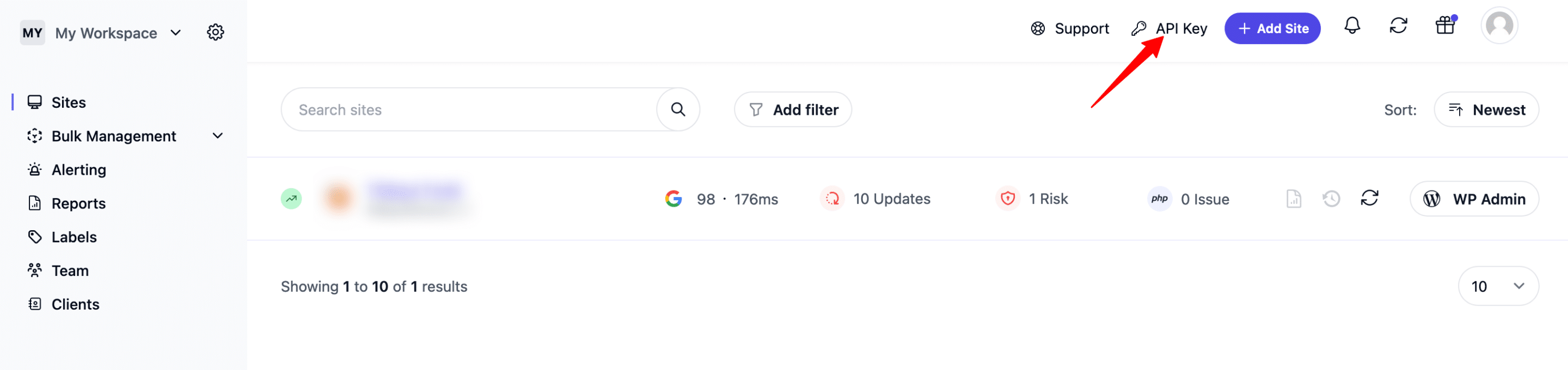
Simply add your API key. For your information, you’ll find it in the menu called “API Key” on your WP Umbrella online interface:
WP Umbrella features: what can you do with this tool?
Manage all your sites in one place
When you are logged into your interface, you can access all your data on a single dashboard.
You get a first overview of the current status of your site in the central area:
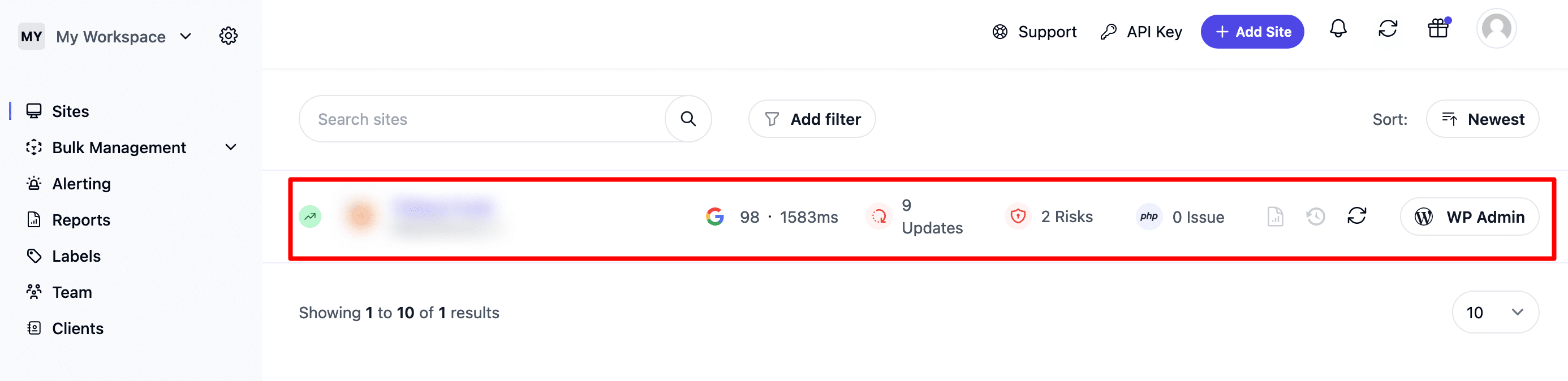
In the screenshot below, you can see the following items:
- the site’s Google PageSpeed Insights score (“98 . 1583 ms);
- the number of updates to perform (“9 updates”);
- the detection of two security-related risks (“2 risks”);
- the number of recorded PHP errors (“0 Issue”);
- a button to log in to your WordPress dashboard with one click (WP Admin) in order to access your back office.
You can access the various features offered by the tool either via the menus in the left sidebar, or by clicking on the site of your choice.
Perform bulk updates with WP Umbrella
For example, by clicking on the site we just added, we get access to a tab called “WordPress Management.”
This is where you can perform bulk updates for your plugins, themes, and the WordPress core (all its source files).
To do this, simply check the boxes corresponding to the extensions of your choice, then click the “Update” button:
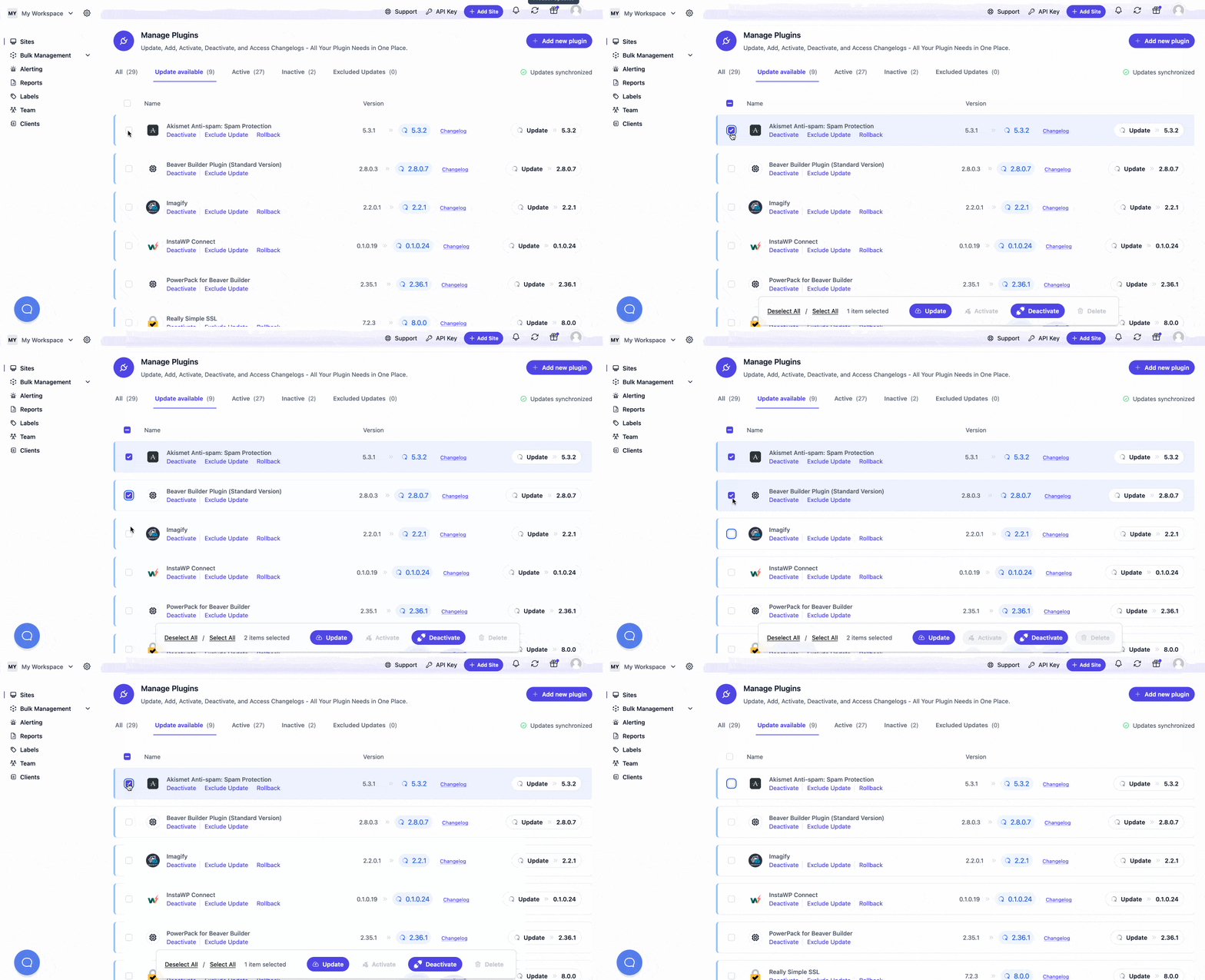
As soon as a plugin update is needed, the plugin automatically appears in the list in a synchronized way. You can also activate, deactivate, and delete the extensions of your choice from here.
Create automated backups
To strengthen the security of your WordPress site, it is essential to back it up regularly (among other things).
You can do this through WP Umbrella’s “Backups” tab:

You can create manual and/or automatic backups. Here are the main features of this WordPress backup feature:
- incremental backups: only new content is backed up between each backup, to optimize performance;
- possibility to choose the frequency of your automatic backups: monthly, weekly, daily, or hourly;
- option to select the files and tables in your database to exclude from the backup, if needed;
- site restoration using the backup of your choice is possible, with the option to download it;
- storage of your backups in the cloud for 50 days on European servers to comply with the GDPR.
Monitor your WordPress site
Another interesting aspect to ensure your site’s security and its overall proper functioning is monitoring. In technical jargon, this is called monitoring.
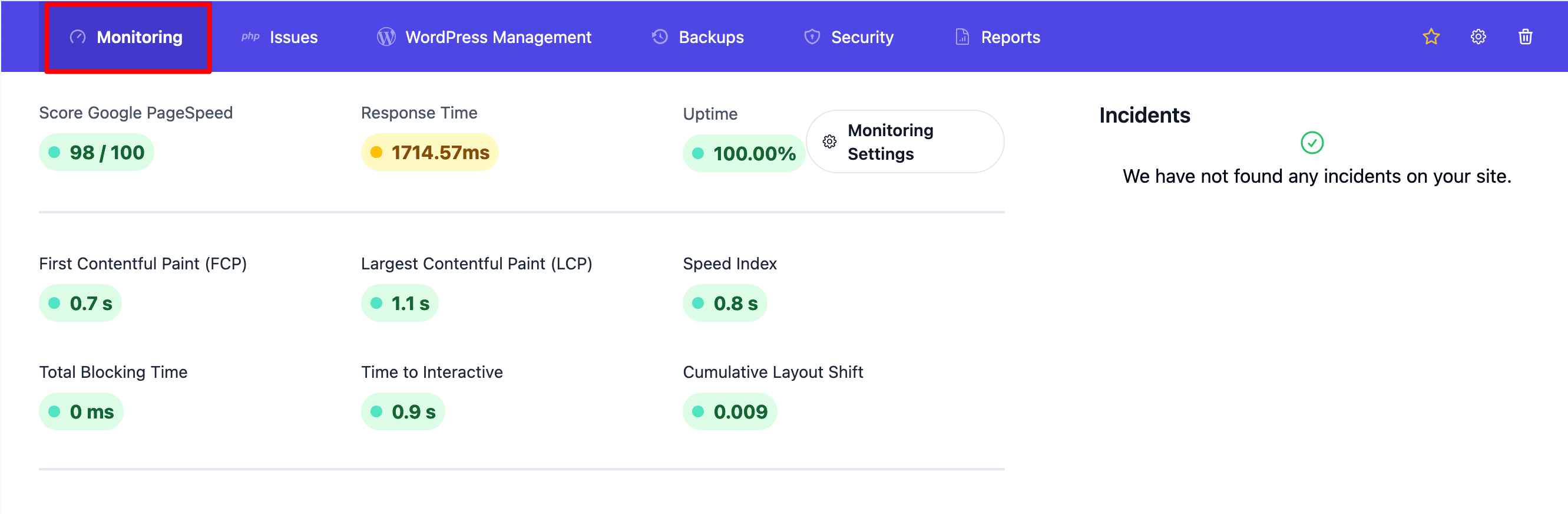
Several tabs can provide you with information on this overall aspect:
- the “Monitoring” tab details your site’s performance (loading speed), with a Google PageSpeed Insights score:
- the “php Issues” tab informs you about the possible detection of PHP errors such as a 500 error, for example;
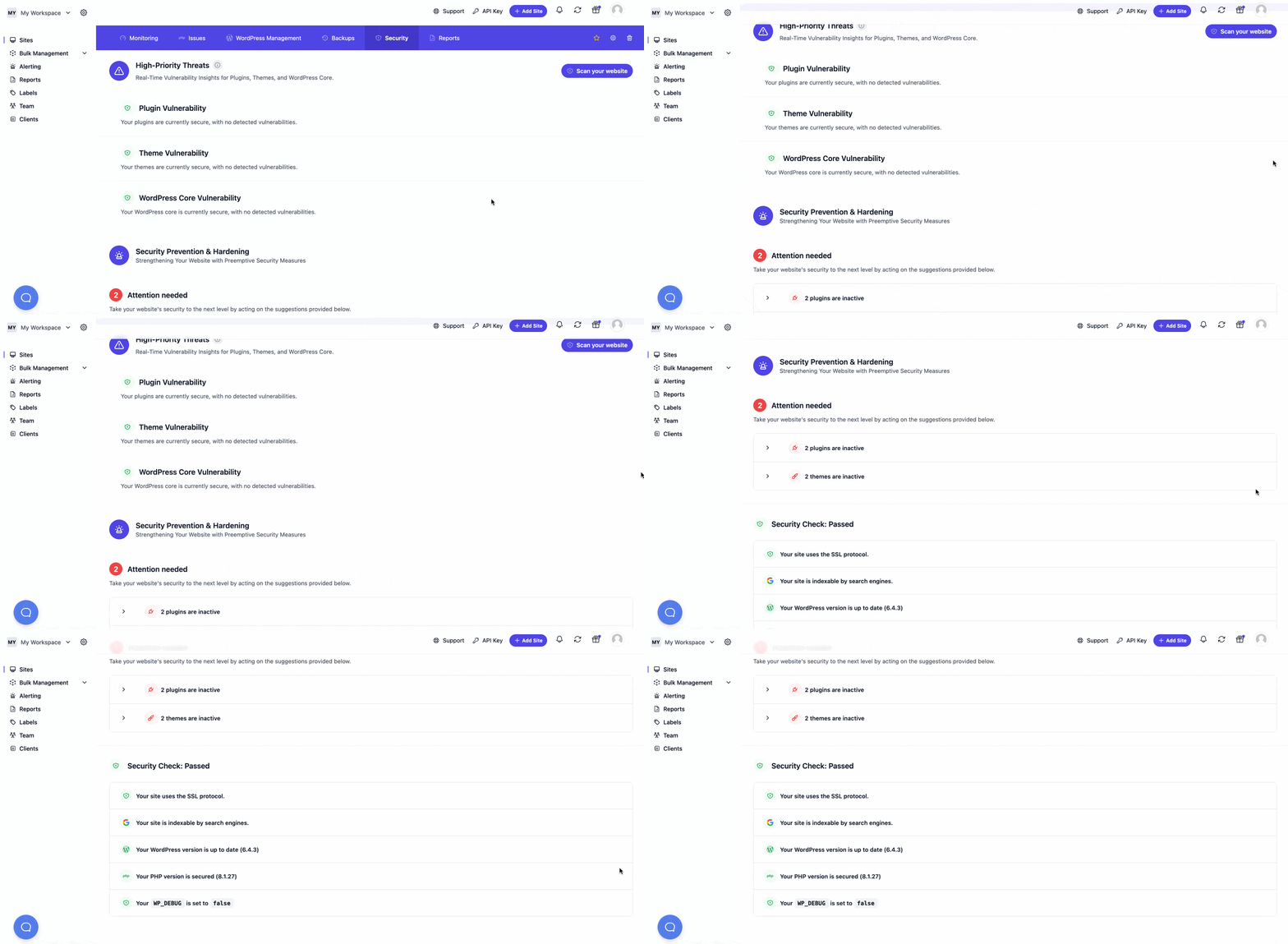
- the “Security” tab informs you about several elements at once. First, the vulnerabilities detected in your plugins, themes, and WordPress Core. Then you have access to security checks. WP Umbrella informs you about issues related to SSL (HTTPS), mixed URLs, your PHP and WordPress versions, etc.
In order to be informed in real time of the slightest technical issue on your sites, you can also set up alerts by email or on Slack.
These alerts will let you know, for example, about detected vulnerabilities or the availability of a backup for download.
But also, and above all, your sites’ downtime, meaning the periods during which they are offline (your visitors can no longer access your content)!
This can happen from time to time, in the event of an issue with your hosting server, for example.
Needless to say, it is best to avoid downtime as much as possible, because it harms your brand image, your sales, and your organic search rankings (SEO).
It is also very harmful in terms of user experience, because it prevents your potential customers from taking action to download a document, request a quote, or purchase a product or service.
With WP Umbrella, you can react immediately to find a quick solution to downtime!
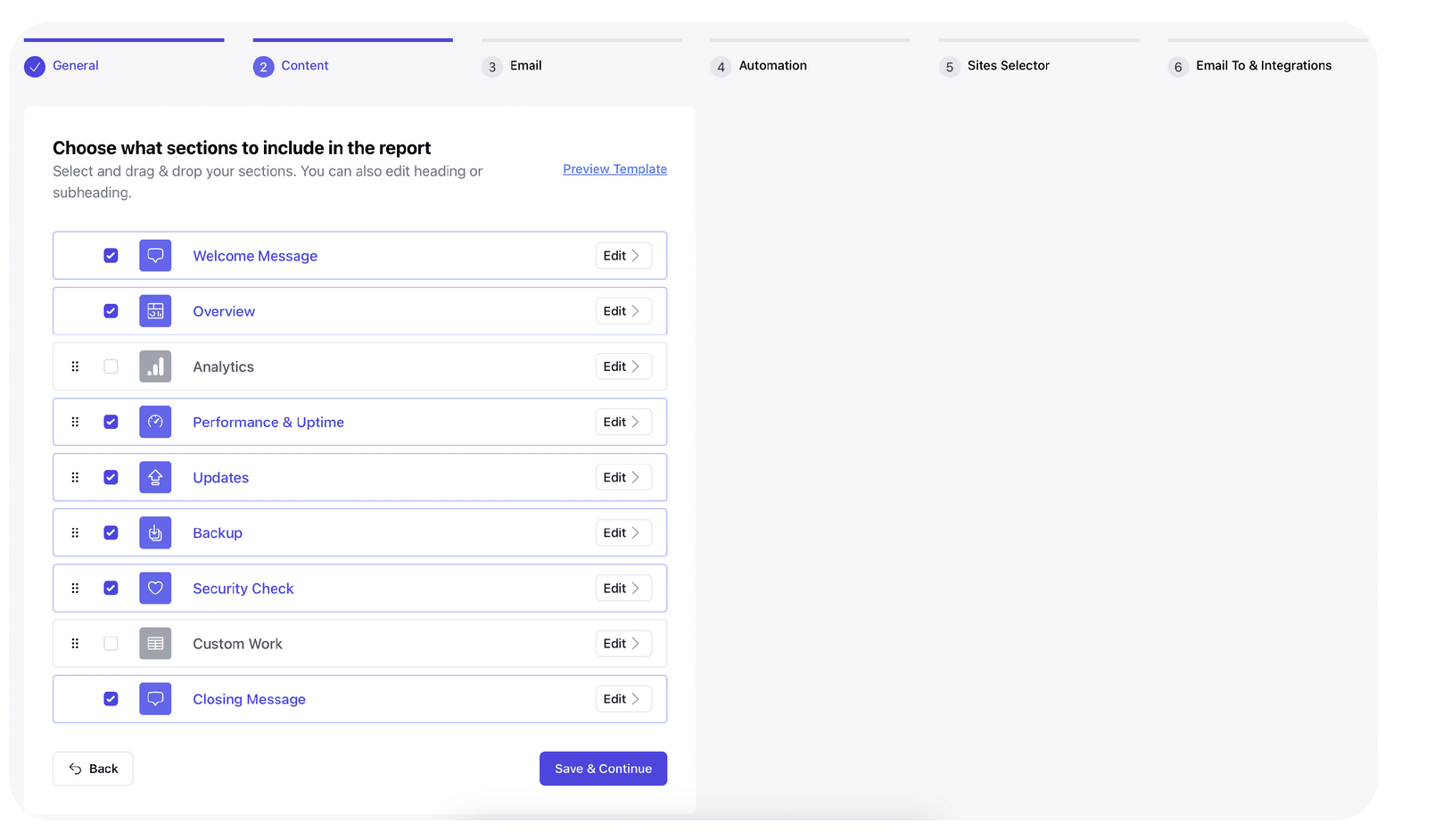
Create automated maintenance reports
Finally, let’s look at one last very practical feature if you handle site maintenance for clients.
WP Umbrella lets you create customizable activity reports in English to inform your clients about the management operations carried out on their site.
This feature is available as a white-label option, meaning you can configure your report with your company name, colors, and logo, with no mention of the WP Umbrella brand or plugin.
Everything is done through a handy step-by-step setup wizard.
You can choose from a wide range of information to include/exclude (backups, performance, updates, monitoring, Google Analytics 4 data, etc.), and even schedule the automatic sending of your reports by email, each time with a personalized message for each client:
We have finished covering the details of the site management tool’s features. Now let’s move on to the pricing section.
How much does WP Umbrella cost?
You now know this: WP Umbrella praises simplicity. This is also reflected in its pricing policy, which is very easy to understand.
To use this tool, the price is $1.99/month per site. This gives you access to all WP Umbrella features, as well as personalized email support. The subscription can be canceled at any time.

Summary & review of WP Umbrella
To conclude this test and review of WP Umbrella, let’s first summarize the main advantages and disadvantages of this SaaS platform.
Advantages of WP Umbrella
- Multisite management and maintenance are made easier thanks to the automation of multiple tasks;
- A single dashboard to carry out all your operations on all your sites at the same time;
- Excellent value for money;
- A tool suitable for all types of profiles – from beginners to experienced technicians – thanks to its ease of use;
- A user-friendly and ergonomic interface;
- Real-time monitoring of your site, with the option to receive alerts so you can react as quickly as possible;
- The creation of automated maintenance reports;
- Responsive and effective support;
- User needs taken into account to improve the tool. In fact, WP Umbrella transparently offers a clear roadmap with the features currently under development.
Disadvantages
- The dashboard and interface menus are not available in French;
- The lack of tiered pricing based on the number of sites you want to add.
Maintenance WP’s opinion on WP Umbrella
The Maintenance WP agency team is unanimous. In our view, WP Umbrella is an excellent companion for tracking all the important data from your WordPress sites in one single place.
We recommend this tool for carrying out your daily maintenance operations and monitoring your sites. We have been using it for several years on multiple projects and are very satisfied with it.
Finally, we would like to draw your attention to one important point to keep in mind. Despite its efficiency and reliability, WP Umbrella is not a magic tool.
Once it detects a problem, for example a PHP error or a conflict between two plugins, it is up to you to resolve it by applying the right technical best practices!
Provided you know what to do… and have the time to get to work on it. That is where human expertise, coupled with excellent knowledge of WordPress, is necessary.
Would you like support with maintaining your WordPress site? Contact us to get a tailor-made solution that meets your needs quickly, reliably, and professionally.
FAQ
Who are WP Umbrella’s competitors?
There are several alternatives to WP Umbrella, such as ManageWP, MainWP, WP Remote, or iThemes Sync. In this regard, WP Umbrella offers a free migration service to its tool from any competitor.
Can I use WP Umbrella for free?
Yes, but with significant limitations. The tool offers a 14-day free trial that includes all its features. Once this period has passed, you can only use the health check tool and the secure update technology.
Is WP Umbrella GDPR-compliant?
Yes, WP Umbrella is GDPR-compliant. For example, the service states that it only uses “servers and databases hosted in Europe” and that it stores only “the data strictly necessary for the service to operate”.
Is WP Umbrella compatible with multisite?
You can use WP Umbrella without any problem to manage the maintenance and monitoring of a multisite network.